Open the panel and log in
What this gets you
Access to the web panel, with a working sign-in method for every visit after this one.
Before you start
- The master already running (see Install the master).
- An authenticator app on your phone or computer — Google Authenticator, 1Password, Aegis, or anything else that reads a standard 6-digit time-based code. You’ll need it for every future sign-in, not just this one.
The steps
-
Find the master’s address on your local network — check your router’s device list, or look it up directly on the master if you have terminal access to it. Then open, in your browser:
https://<master-address>:8443/ -
The panel uses a self-signed certificate the first time, so your browser will warn you once — proceed past that warning.
-
Your first visit is a one-time enrolment, not a sign-in. Enter the username
adminand the initial password. If you set your own password in advance, use that; otherwise a random one was generated for you — read it from the master’s own log:Terminal window sudo journalctl -u buddy-server | grep -i "admin password"To choose your own initial password instead of using the generated one, set
BUDDY_ADMIN_PASSWORDin/etc/buddy/server.envon the master before its first start — or set it there and restart thebuddy-serverservice if the master has already started once. -
Set up your authenticator app: scan the QR code shown, or copy the text secret into the app by hand, then enter the current 6-digit code it shows to confirm the pairing worked.
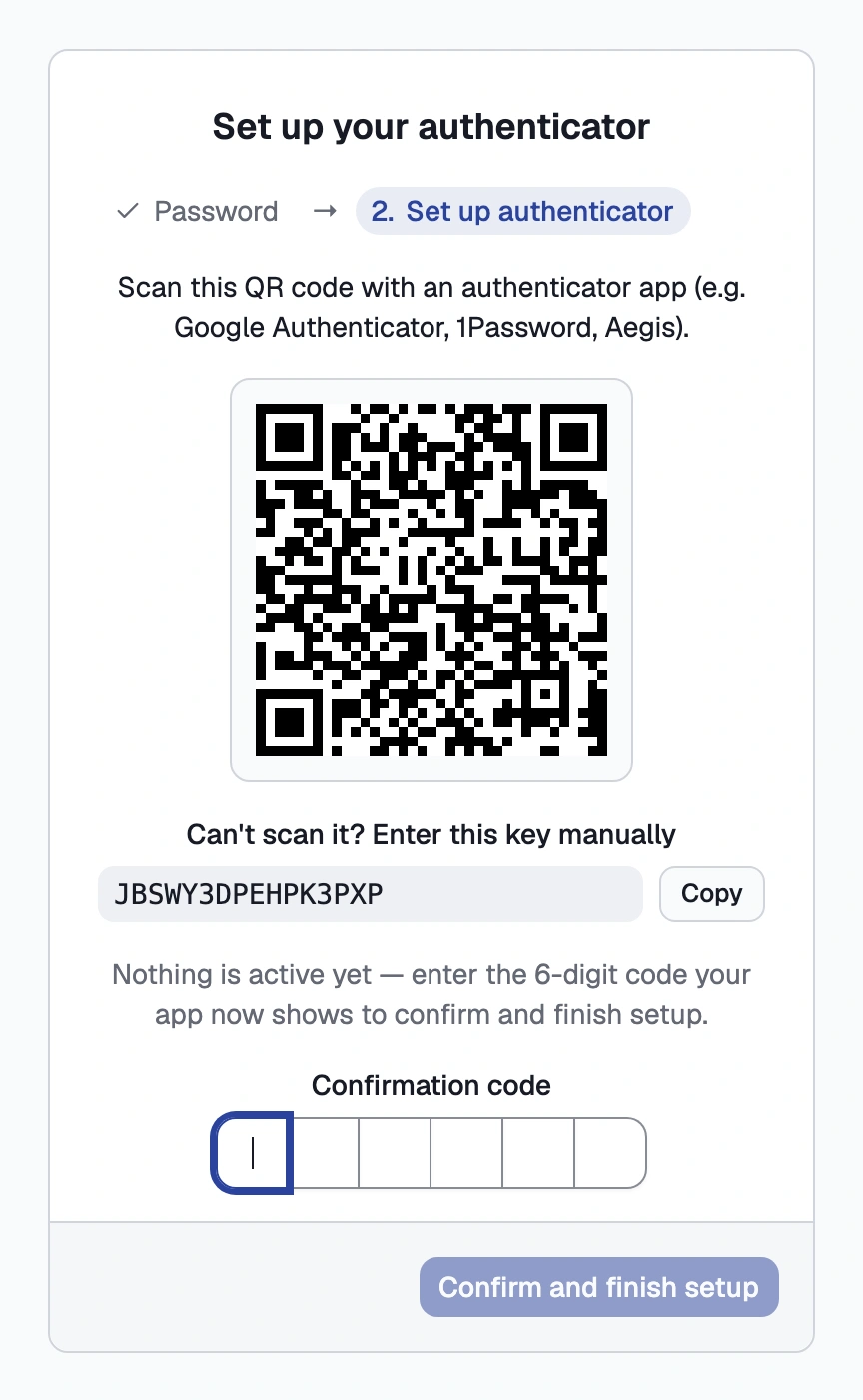
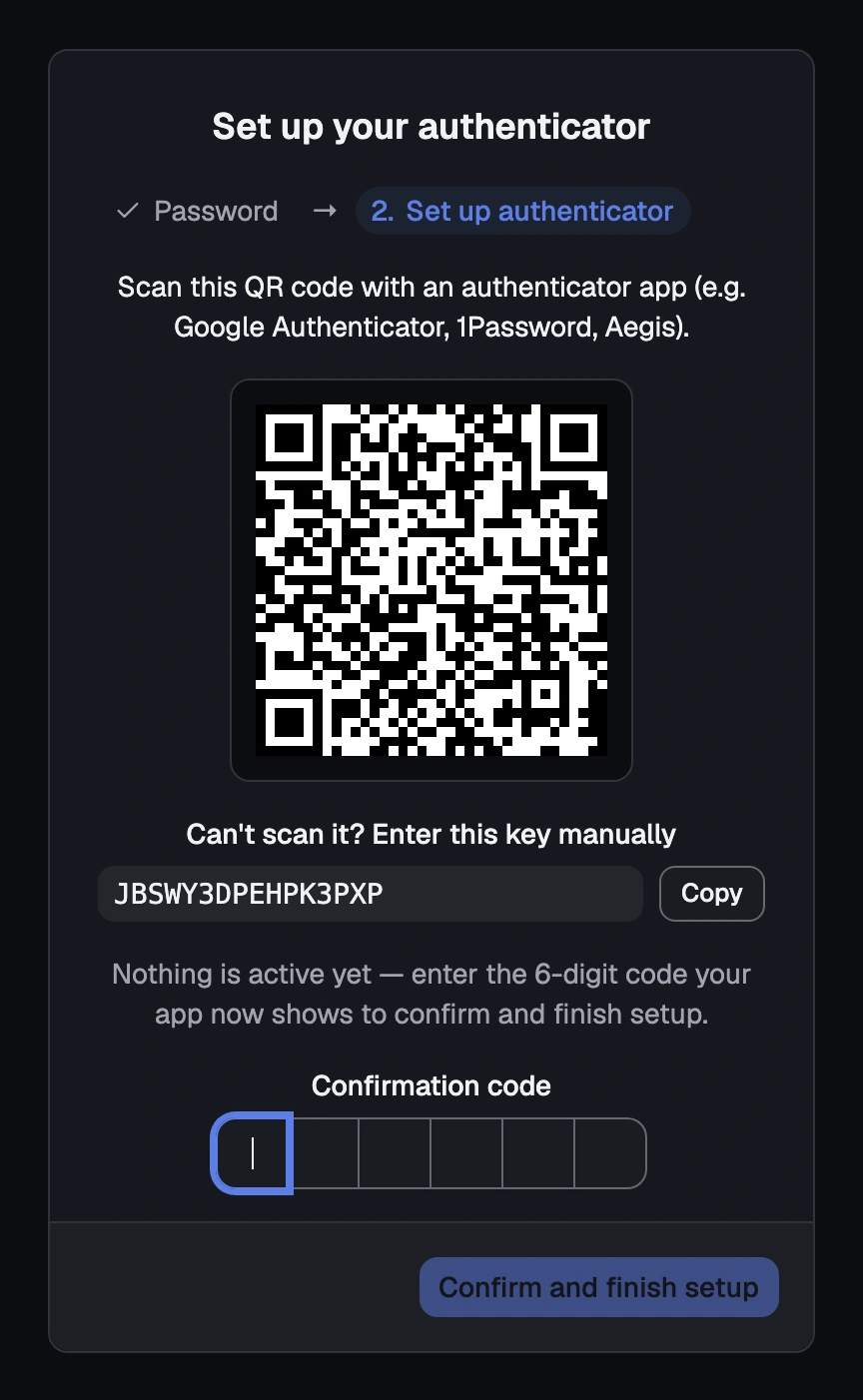
The enrolment screen's QR code and the 6-digit confirmation field
Once you confirm that code, the initial password stops working for anything — it only ever grants access to complete enrolment. Every sign-in after this one is your username plus the current 6-digit code from your authenticator app; there’s no password field on the sign-in screen. The code field submits itself as soon as you finish typing it Sincev0.0.21, so there’s nothing further to click.
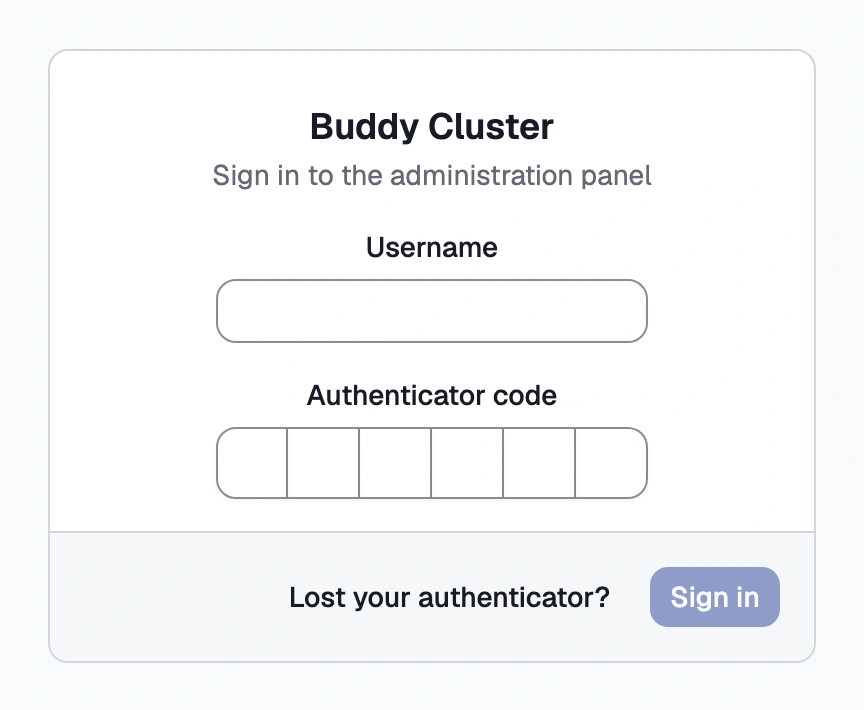
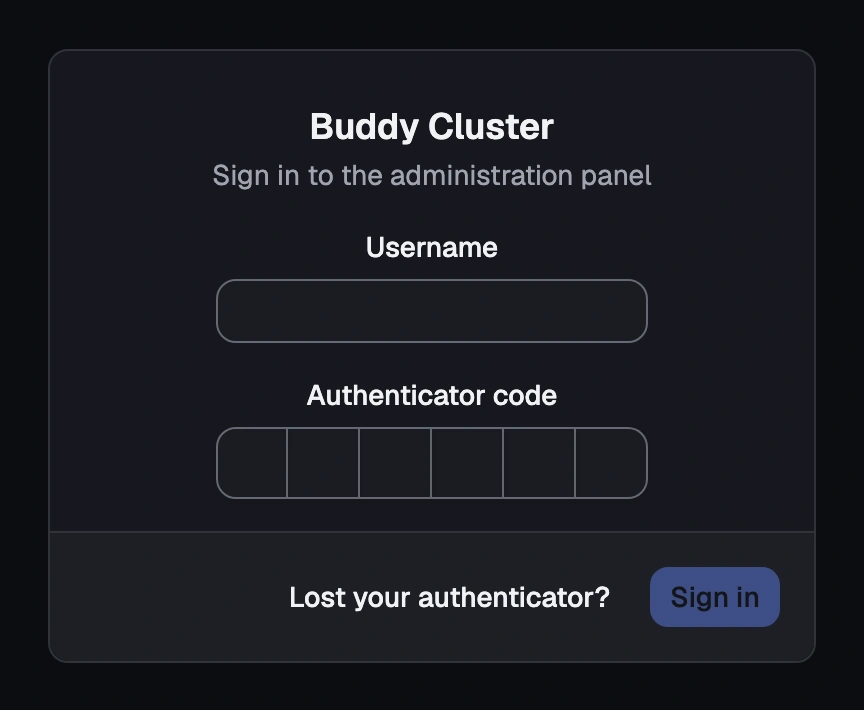
How you know it worked
The panel moves past the sign-in screen and shows you the master’s status. If the cluster doesn’t exist yet, that’s the welcome screen covered next in Run the setup.
What can go wrong
- I don’t know the admin password
- I lost access to my authenticator app — the sign-in screen has a “Lost your authenticator?” link for exactly this
- Every login says “Too many incorrect codes”
See these symptoms in Troubleshooting.