Keep the cluster's software up to date
What this gets you
Every node’s own management software kept at the same version as your master, usually with nothing for you to click and always something you can watch.
Before you start
- Nothing: this mostly happens on its own. This guide is for checking in on it, or nudging it along.
- Checking for updates automatically needs a working internet connection. It’s entirely optional, fully off by default, and a cluster with no internet access at all works exactly the same way — it just updates by hand instead (below).
The steps
-
The Dashboard tells you when a newer version of the master’s own management software exists Sincev0.0.22. The first time, it asks whether to turn this check on at all; declining is fine, and can be changed later in Cluster → Advanced, alongside a Check now button for checking on demand rather than waiting for the next automatic one.
Nothing about your cluster, your nodes or you is ever sent as part of this check — it fetches one small file, once a day, and compares its own version against it, locally.
Right now, this check always reports “Couldn’t check for updates.” There’s nothing wrong with your cluster or your connection — the feed it checks against isn’t accepting real update notices yet. Update by hand instead (step 3, below) until this changes.
-
When the Dashboard does show an update, choose “Update now.” Confirm the version you’re moving to, then wait: the master downloads it, checks it thoroughly, installs it and restarts onto it. The panel — and anything else talking to the master directly — is unreachable for a few minutes while this happens; your nodes and whatever they’re running on them are not affected either way. If anything about the install doesn’t go cleanly, Buddy puts the master back exactly as it was automatically, and the Dashboard explains why — see Keeping Buddy Cluster updated if the panel doesn’t come back at all.
-
Or update the master by hand, any time — whether or not the automatic check is turned on, and the only option today: download the new release and re-run the installer on it (see Install the master). This updates the master’s own copy of the management software in place, along with everything else it installs.
This is the same single step however you set the master up: whether you started from an existing operating-system install or from the ready-made card image. The image is built by running that same installer, so both end up identical, and re-running it upgrades what’s there rather than replacing it.
You never re-flash the card to update. Re-flashing would erase the cluster’s own records along with everything else on the disk.
-
Open Cluster → Agent to see every worker’s version, alongside the master’s (always shown already at target; it’s never pushed to, only verified).
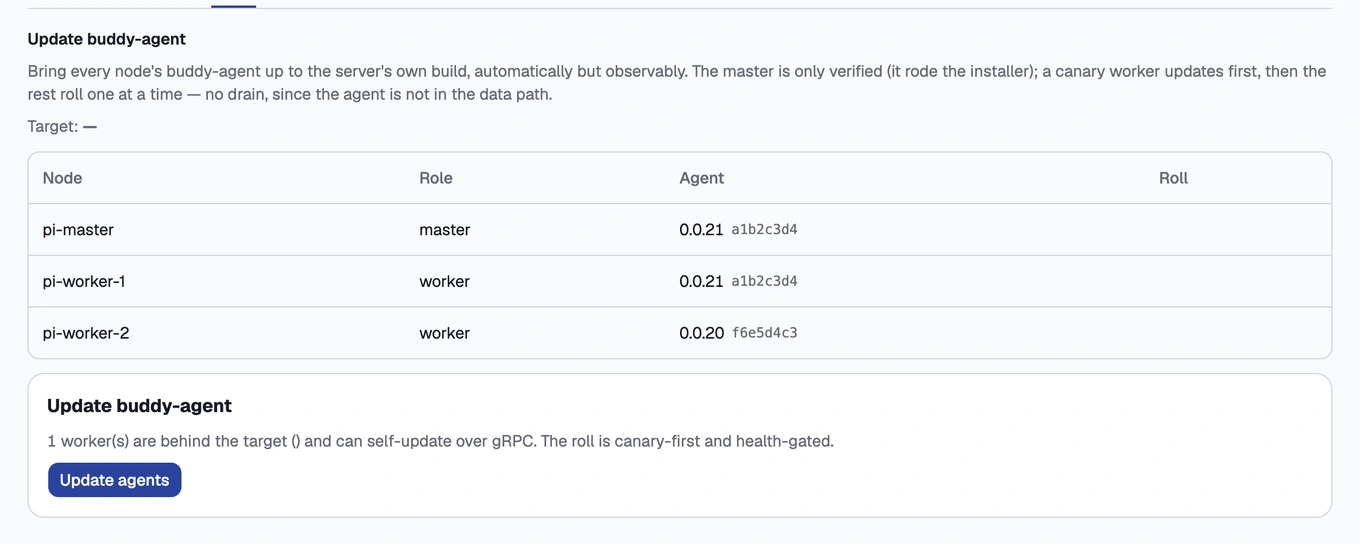
The Cluster Agent screen, listing every node's management-software version -
If any worker is behind, Buddy has already queued — or will shortly queue — a rolling update for it automatically. You don’t need to start this yourself; open this screen to watch it happen. Right after the master itself finishes an update, the Dashboard also offers this directly, with the number of nodes it would bring up to match.
-
If you need to pause it — during an incident, say — use Pin / pause; Resume to continue. Abort stops a roll in progress.
Workers are updated one at a time, starting with one as a canary before the rest follow, and — unlike node maintenance — with no drain: refreshing this program restarts only itself, not your workloads.
How you know it worked
Every node on Cluster → Agent shows the same version as the master.
What can go wrong
- “Couldn’t check for updates”
- The update failed and the panel came back on an older version
- A worker is stuck on the old agent version
- A worker is badged “unsupported architecture”
- “SHA-256 mismatch” in the logs
- A node is listed under “Needs an SSH re-bootstrap.”
- The roll is halted or “pinned” and won’t proceed
- “The master’s agent is not at the target version.”
- A row is badged “same version, different build.”
See these symptoms in Troubleshooting.