Prepare a disk and create a storage
What this gets you
A disk turned into cluster storage: first a pool (the disk, ready to use), then a storage — a named, sized slice of that pool an app can keep its data on.
Before you start
- A USB or NVMe disk, plugged into any node in your cluster.
- Nothing important on that disk — preparing it erases everything on it.
The steps
-
Plug the disk into a node, then open Storage. It appears under that node as an unprepared device, with its real size and model.
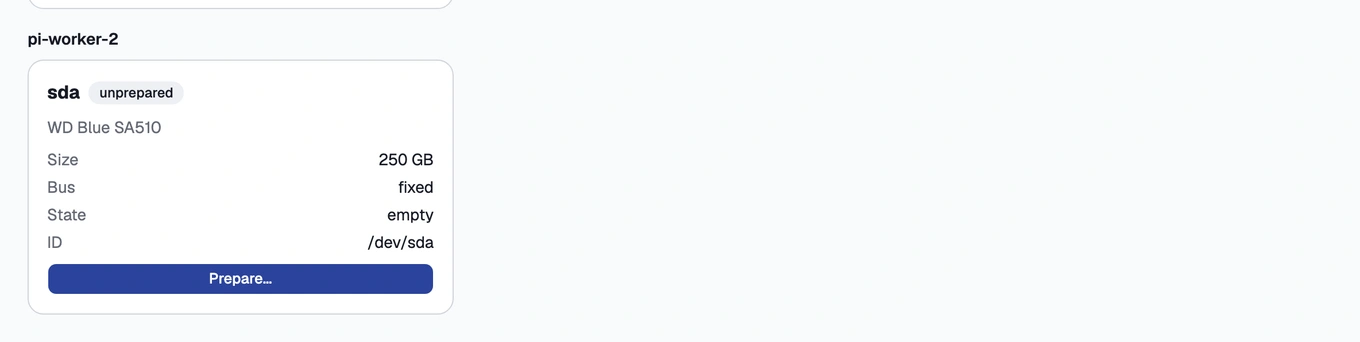
The Storage screen listing an unprepared device under its node -
Choose Prepare…, pick a filesystem (XFS is the default), and confirm the data-loss warning.
Preparing a disk erases everything on it. There is no undo — make sure it’s the right disk before you confirm.
-
Watch the live progress. The device becomes a pool, showing its total capacity and how much is still free.
-
On the ready pool, choose Create storage…, then enter a name and a size — a real quota carved out of the pool’s free space, not just a label.
-
Choose a tier:
- Node-local — the fastest option, and the default for databases: the data never leaves the disk’s own node, so there’s no network between the app and its data.
- Shared — the storage is reachable over the cluster’s own private network, so an app using it can run on any node, not just the one holding the disk. Pick an access mode: read-write-once (the default) for a single app, or read-write-many if several apps genuinely need to write to the same files at once.
How you know it worked
The storage shows as Available, and the pool’s free capacity drops by the size you asked for.
A pool lives on one disk, attached to one node — there is no replication. If that node or its disk fails, the pool’s data goes offline with it, whether the storages on it are node-local or shared. Shared only means an app running on a different node can reach the data over the network; it does not mean the data is copied anywhere or protected against that node’s failure. Keep anything you can’t afford to lose backed up elsewhere.
What can go wrong
- A disk doesn’t appear / a “Prepare” option is missing
- A pool shows “degraded”
- “Detach” / “Delete” is refused
See these symptoms in Troubleshooting.